Introductory Overview
Workload Identity Federation (WIF) grants external applications secure access to Google Cloud resources without using long-lived service account keys. Instead of embedding a JSON key file, an external identity provider’s token (short-lived) is exchanged for a temporary Google Cloud credential. This eliminates the risk and maintenance overhead of managing service account private keys.
With WIF, you configure a Workload Identity Pool (a container of external identities) and an identity Provider (which trusts an external IdP like Okta). External tokens are exchanged via Google’s Security Token Service (STS), following the OAuth 2.0 token exchange spec, to obtain Google OAuth2 access tokens.
In this guide, we’ll integrate Okta as the external IDP for WIF. The goal is to use Okta (via an OAuth 2.0 client credentials flow) to obtain a token and then exchange it for a Google Cloud access token — all without any service account keys. The high-level flow is:
- An application authenticates to Okta and gets a JWT.
- Google Cloud’s STS verifies this JWT against the configured Okta provider.
- Google issues a Google access token if valid.
We’ll cover setting up Okta, configuring the Google Cloud WIF (using the Console UI), using a Python script to perform the token exchange and access a Cloud resource, and a diagram to tie it all together.
Okta Setup Steps (OAuth2 Authorization Server & App)
To allow Okta to issue tokens usable by Google Cloud, you need to configure an OAuth 2.0 authorization server and an OAuth client (application) in Okta. No screenshots are needed; the following text steps will guide you.
1. Create or Use an Authorization Server
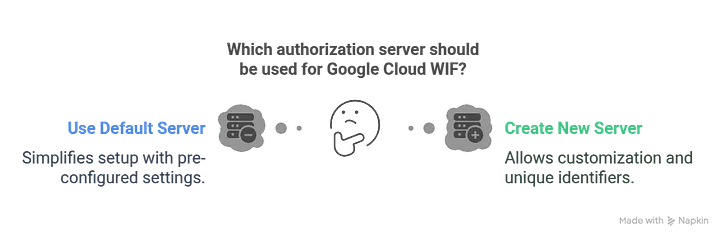
In Okta (Developer Edition), go to Security → API → Authorization Servers. Either use the default authorization server (often named default) or create a new one.
If creating a new server:
- Give it a name (e.g., Google Cloud WIF).
- Note its Issuer URL (it will look like
https://<your-okta-domain>/oauth2/<authz-server-id>).
This Issuer URL is important; we’ll need it when configuring the OIDC provider in Google Cloud. Also, choose an Audience value for the server (a URI or identifier string). This should be a unique identifier (for example, api://my-gcp-app). You’ll also need to supply this audience in Google Cloud’s provider setup.
2. Define Scopes and Claims
Within your Okta authorization server:
- Define a custom scope for your application (e.g.
gcp.access). - Mark this scope as a default scope so that it’s included in issued tokens without needing to request it explicitly.
Next, you can (optionally) define a custom claim in the authorization server’s token configuration.
For instance, you might create a claim like gcpSubject that maps to a value (such as the client ID or an application name) to be used as the identity in Google Cloud. This custom claim will later be mapped to the Google identity.
Ensure:
- The claim is added to the access token.
- It is set to Always Include.
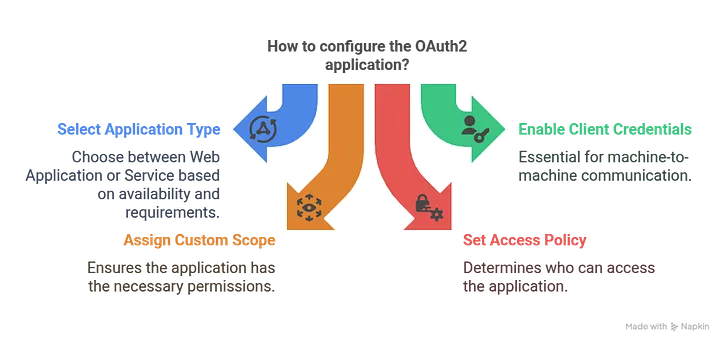
Finally, under Access Policies for the authorization server, make sure the policy allows your client application to obtain tokens. For simplicity, you can have a policy that grants all clients access (or specifically your new app).
3. Register an OAuth2 Application (Client Credentials)
Create a new Okta application integration:
- Navigate to Applications → Applications.
- Click Create App Integration.
- Choose OIDC — OpenID Connect as the sign-in method.
- Choose Web Application as the application type ("Service" also works if available).
Configure the app:
- Give it a name (e.g., GCP WIF Demo App).
- Enable the Client Credentials grant type.
- Assign the custom scope you created (e.g.,
gcp.access).
After saving, Okta will generate a Client ID and Client Secret. Copy these credentials; the client (our Python code) will use them to request a token.
Important: By default, Okta’s custom authorization servers issue JWT access tokens (not opaque tokens) when using the client credentials flow. This is exactly what we need, because Google Cloud’s Workload Identity Federation does not support opaque tokens or introspection.
We need a JWT that Google can verify via the issuer’s public keys. Okta’s access token in this scenario is a JWT signed by Okta, which Google Cloud can trust by fetching Okta’s public keys via the issuer URL.
At this point, Okta is set up: we have an issuer URL, an audience string, a custom scope, and a client app with a client ID/secret that can request tokens.
Google Cloud Configuration (Console UI for Workload Identity Federation)
Next, configure Google Cloud to trust Okta as an identity provider and map tokens to a Google Cloud identity.
1. Create a Workload Identity Pool
In the Google Cloud Console:
- Navigate to IAM & Admin → Workload Identity Federation.
- Click Create Pool.
- Give the pool a name (e.g.,
OktaPool) and an ID (e.g.,okta-pool). - Assign it to a project (consider using a dedicated project for identity federation configs).
- Choose External as the pool type.
After creation, you’ll have an empty pool ready for providers.
2. Add an OIDC Provider (Okta)
Within the newly created pool:
- Click Add Provider.
- Choose OIDC as the identity provider type.
Provide the following details:
- Provider Name/ID: e.g.,
Okta-Provider - Issuer URL: Your Okta authorization server issuer URL (e.g.
https://dev123456.okta.com/oauth2/ausABC123). - Audience: The exact audience string configured in Okta (e.g.
api://my-gcp-app). - Allowed Token Types: Check Access tokens.
- Credential Source: Leave as Google-managed so Google fetches keys from the issuer’s
.well-knownendpoint.
3. Attribute Mapping
Map Okta token claims to Google attributes. Google requires a google.subject attribute.
Examples:
google.subject = assertion.sub- or
google.subject = assertion.gcpSubject
The chosen value should uniquely identify the calling workload. The google.subject value can be up to 127 characters and must be unique per identity.
You may also map additional custom claims (e.g., group membership) to attribute.<name> for fine-grained IAM conditions (optional).
4. Trust Configuration
Save the provider. Google Cloud now trusts tokens issued by your Okta Issuer with the specified audience and knows how to extract the identity.
5. Grant IAM Access to the External Identity
Typically, you impersonate a Google service account via this external identity.
Steps:
- Create a service account (e.g.,
okta-sa@your-project.iam.gserviceaccount.com). - Grant this service account the required IAM roles on target resources.
- Allow the Okta-federated identity to impersonate this service account.
Example using gcloud:
gcloud iam service-accounts add-iam-policy-binding okta-sa@your-project.iam.gserviceaccount.com \
  --role roles/iam.workloadIdentityUser \
  --member "principal://iam.googleapis.com/projects/<PROJECT_NUMBER>/locations/global/workloadIdentityPools/okta-pool/providers/Okta-Provider/subject/<CLAIM_VALUE>"
Alternatively, in the Console UI, add a new principal of type Workload Identity Pool Principal and use:
principal://iam.googleapis.com/projects/PROJECT_NUMBER/locations/global/workloadIdentityPools/okta-pool/subject/<sub>
Replace <sub> with the actual value used by google.subject.
Architecture Diagram
Below is an architecture diagram illustrating the end-to-end flow and configuration between the application, Okta, and Google Cloud Workload Identity Federation.

Flow overview:
- The client application requests an OAuth2 token from Okta (client credentials grant).
- Okta returns a JWT access token.
- The application presents this token to Google Cloud’s STS.
- Google verifies the token and issues a short-lived Google access token.
- The application calls Google Cloud APIs (e.g., Cloud Storage).
Python Integration (Okta Token + Google STS)
The script below:
- Obtains an OAuth2 access token from Okta.
- Uses Workload Identity Federation credentials.
- Accesses Google Cloud Storage.
#!/usr/bin/python
# Okta OAuth client credentials flow with Workload Identity Federation
from google.cloud import storage
import google.auth
import os
import json
from google.auth import identity_pool
import requests
import base64


def list_buckets(project, scoped_credentials):
    """Lists all buckets."""
    print("Calling Google Cloud Storage APIs")
    storage_client = storage.Client(
        project=project, credentials=scoped_credentials)
    buckets = storage_client.list_buckets()
    print('Printing Storage bucket for project: ', project)
    for iteration, bucket in enumerate(buckets):
        print("bucket ", iteration, " ", bucket.name)


def get_okta_token():
    auth_server_id = <otka auth server id>
    client_id = <otka client id>
    client_secret = <okta secret id>
    okta_domain = <okta domain>

    credentials = f"{client_id}:{client_secret}"
    base64_encoded_credentials = base64.b64encode(credentials.encode()).decode()

    headers = {
        'Accept': 'application/json',
        'Authorization': f'Basic {base64_encoded_credentials}',
        'Content-Type': 'application/x-www-form-urlencoded'
    }

    data = {
        'grant_type': 'client_credentials',
        'scope': <okta scope>,
    }

    response = requests.post(
        f'https://{okta_domain}/oauth2/{auth_server_id}/v1/token',
        headers=headers,
        data=data
    )

    response.raise_for_status()
    with open('/tmp/okta-token.json', 'w', encoding='utf-8') as f:
        json.dump(response.json(), f, ensure_ascii=False, indent=4)


if __name__ == '__main__':
    get_okta_token()
    with open('credential.json') as file:
        json_config_info = json.loads(file.read())

    scopes = ['https://www.googleapis.com/auth/devstorage.read_write']
    credentials = identity_pool.Credentials.from_info(json_config_info)
    scoped_credentials = credentials.with_scopes(scopes)

    project = <google cloud project id>
    list_buckets(project, scoped_credentials)

    os.remove('/tmp/okta-token.json')
Conclusion
By configuring Workload Identity Federation with Okta, we achieved a secure integration between an external identity provider and Google Cloud. The benefits are clear:
- No persistent service account keys
- Centralized identity management via Okta
- Short-lived Google Cloud credentials
This approach is ideal for CI/CD pipelines, on-prem services, multi-cloud workloads, and partner integrations that need controlled access to Google Cloud resources.
References
- Google Cloud — Workload Identity Federation overview
- Google Cloud — Attribute requirements for external identities
- Okta — Authorization servers and OAuth 2.0 client credentials setup
- Workload Identity Federation — CLI setup examples
Related Topics
Enjoyed this article?
Check out more blogs on our blog.