If You've Maintained an Android App, You Already Know This Routine
If you've been building Android apps for a while, you've probably experienced the annual Target SDK upgrade cycle.
A new Android version arrives, Google announces the next Play policy deadline, and suddenly every development team starts planning the same migration: update the SDK, bump a few dependencies, fix compatibility issues, run regression tests, and hope nothing unexpected breaks before release.
Most years, it's a fairly predictable process.
This year deserves a little more attention.
Starting August 31, 2026, Google Play requires all new apps and app updates to target Android 16 (API Level 36). Apps that continue targeting API 35 won't be accepted for publishing unless an eligible extension has been approved.
android {
   compileSdk = 36

   defaultConfig {
       targetSdk = 36
   }
}
Unfortunately, that's usually the easiest part.
Updating the Target SDK changes how Android expects your application to behave. Features that worked perfectly on Android 15 can start exposing layout issues, permission regressions, navigation inconsistencies, or background execution problems once your app begins targeting API 36.
From experience, changing the SDK version rarely consumes most of the migration effort. The real work starts after the project compiles successfully. That's when you begin testing screens with gesture navigation, verifying edge-to-edge layouts, checking background workers, and ensuring third-party SDKs still behave as expected.
The good news is that Android 16 doesn't require rebuilding your application from scratch. Most production apps can migrate without major architectural changes as long as the migration is planned early and tested thoroughly.
In this guide, we'll go beyond simply updating targetSdkVersion. We'll explore what the Google Play deadline actually means, the Android 16 behavior changes that matter in real-world applications, and a practical migration strategy that helps you ship with confidence instead of rushing to meet a policy deadline.
Whether you're maintaining a legacy Android application or actively developing a modern app with Jetpack Compose, this guide will help you prepare for API 36 with fewer surprises.
Why This Deadline Matters
Google updates its Target API Level requirement every year for one simple reason: to ensure Android apps continue adopting the latest platform improvements instead of relying on legacy behaviors indefinitely.
When an app targets a newer SDK, Android enables the latest security protections, privacy safeguards, and platform behaviors that improve the overall user experience across the ecosystem.
For developers, however, this policy has a direct impact on release planning.
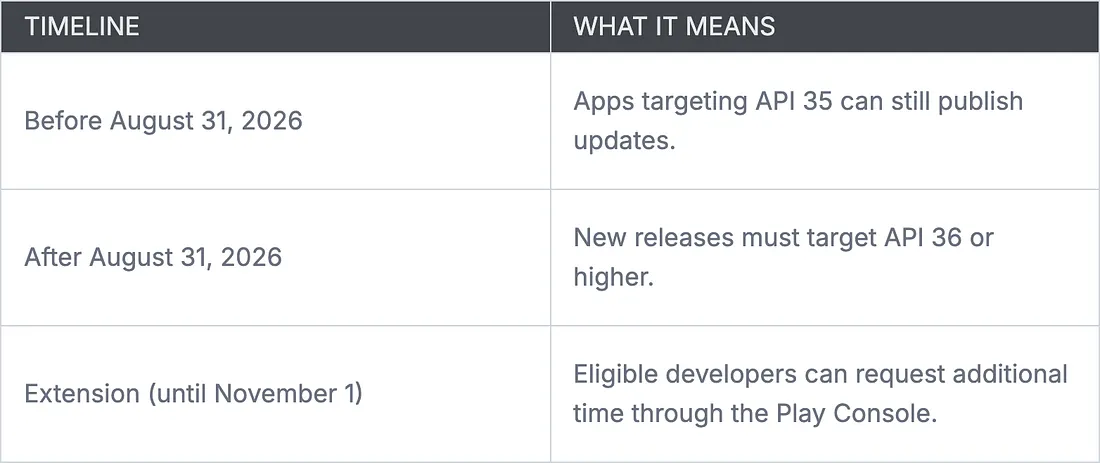
Missing the deadline won't immediately break your application. Existing users can continue using the installed version as usual.
The real challenge appears when you need to ship an update.
Imagine discovering a critical production issue in September: a payment failure, a login crash, or a security vulnerability. Under normal circumstances, you'd prepare a hotfix and publish it the same day.
If your app still targets API 35, that hotfix can't be released until you've completed the Android 16 migration. What should have been a quick deployment suddenly becomes a platform upgrade, dependency review, regression testing cycle, and release process, all while users are waiting for a fix.
That's why experienced Android teams treat Target SDK upgrades as scheduled engineering work rather than a last-minute compliance task. Completing the migration weeks before the deadline leaves enough time to identify regressions, validate critical user flows, and ship the update with confidence instead of unnecessary pressure.
Google Play Policy: What Changes on August 31, 2026?
One of the biggest misconceptions about Google's Target SDK policy is that it's only relevant when you're publishing a brand-new app.
In reality, the policy applies to almost every production team because every app eventually needs updates, whether it's fixing bugs, addressing security issues, improving performance, or releasing new features.
Starting August 31, 2026, Google Play requires all new apps and app updates to target Android 16 (API Level 36). If your application still targets API 35, the Play Console will prevent you from publishing new releases until you've completed the migration.
For developers who genuinely need more time, Google offers an extension program. Eligible apps can request an extension through the Play Console, allowing updates until November 1, 2026. It's important to note that this extension isn't granted automatically; you must apply for it before the deadline.
What Happens If You Don't Upgrade?
Contrary to what many developers believe, missing the deadline doesn't instantly make your app unusable.
Here's what actually happens.
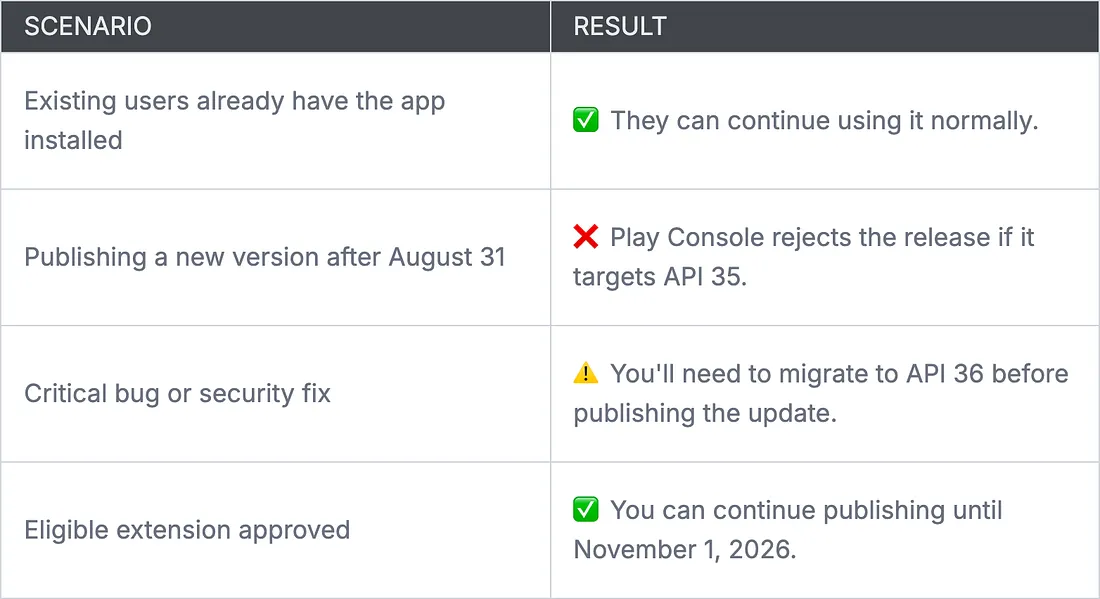
The biggest risk isn't losing your existing users overnight; it's losing the ability to respond quickly when something goes wrong.
Imagine your app starts crashing after a backend API change, or a payment gateway update introduces a critical issue. Normally, you'd prepare a hotfix and push it through your release pipeline.
If your project still targets API 35, that emergency release comes to a halt. Before fixing the original problem, your team must first complete the Android 16 migration, verify compatibility, update dependencies, run regression tests, and only then submit the release for review.
What could have been a two-hour hotfix can easily turn into several days of engineering work.
Why You Should Migrate Early
Many teams postpone Target SDK upgrades because their application "still works." That's understandable, but it's also why migrations become stressful.
Platform upgrades affect more than your own code. Third-party SDKs, Jetpack libraries, build tools, and even UI behavior continue evolving throughout the year. Waiting until the deadline means you're upgrading everything at once, making it much harder to identify the source of a regression.
A better strategy is to treat the migration like any other planned engineering initiative:
- Update your project in a dedicated Git branch.
- Upgrade dependencies incrementally instead of all at once.
- Run a complete regression test on Android 16.
- Validate your release through Internal Testing before merging into your main branch.
💡 Pro Tip: Complete your Target SDK migration at least 4–6 weeks before the Play deadline. This gives your team enough time to uncover platform-specific issues, monitor beta releases, and avoid shipping a rushed migration alongside business-critical features.
What's Actually New in Android 16?
Whenever a new Target SDK requirement is announced, the first question most developers ask is:
"How much of my app am I going to break?"
Fortunately, the answer is usually not much.
For most production applications, migrating to Android 16 (API 36) isn't about rewriting your architecture or redesigning every screen. Instead, it's about ensuring your app behaves correctly under Android's latest platform rules.
Some changes are immediately visible, such as how your UI interacts with the system bars. Others are more subtle, affecting navigation, background execution, permissions, or compatibility with newer Android devices.
Let's start with the foundation of every Android 16 migration.
1. Update Your Project to Target SDK 36
Every Android migration begins with updating your project's SDK versions.
android {
   compileSdk = 36

   defaultConfig {
       minSdk = 24
       targetSdk = 36
   }
}
At first glance, this looks like a two-line change.
In reality, these values serve two different purposes.
compileSdkdetermines which Android APIs your project can compile against.targetSdktells Android which platform behaviors your application has been tested with.
Increasing targetSdk is effectively telling the operating system:
"My application understands Android 16 behavior. Apply the latest platform rules instead of preserving legacy compatibility."
That's why simply changing the SDK version isn't enough. Android immediately begins enforcing newer behavior across multiple parts of your application.
In one production project I worked on, updating the Target SDK took less than five minutes. The following week was spent fixing layout regressions, updating outdated libraries, and testing background tasks that behaved differently on newer devices.
The SDK update is the easiest part of the migration.
Testing is where the real work begins.
💡 Pro Tip: Create a dedicated migration branch before updating the SDK. It keeps your production branch stable while allowing the team to fix compatibility issues incrementally.
2. Edge-to-Edge Is No Longer Optional
If there's one Android 16 change that almost every application should verify, it's edge-to-edge rendering.
Modern Android apps are expected to use the entire display, drawing behind the status bar and navigation bar instead of leaving unused space around the edges.
Older applications often relied on the system to reserve that space automatically.
Older Layout
┌──────────────────────────┐
│ Status Bar               │
├──────────────────────────┤
│                          │
│        Content           │
│                          │
├──────────────────────────┤
│ Navigation Bar           │
└──────────────────────────┘
Modern Android layouts are expected to look more like this:
Edge-to-Edge Layout
┌──────────────────────────┐
│██████████████████████████│
│        Content           │
│        Behind            │
│     System Bars          │
│                          │
│██████████████████████████│
└──────────────────────────┘
This approach creates a more immersive experience and gives applications additional screen space, especially on gesture-navigation devices.
The challenge is that your content must now account for WindowInsets.
Without handling insets correctly, users may experience:
- Buttons hidden behind the navigation bar
- Toolbar titles overlapping the status bar
RecyclerViewitems disappearing beneath system bars- Floating Action Buttons positioned too close to screen edges
These issues don't appear during compilation.
They only become obvious when someone actually uses the application.
3. Understanding WindowInsets
Think of WindowInsets as Android's way of telling your application:
"These areas are occupied by the system. Adjust your UI accordingly."
Instead of assuming fixed padding values, your layouts should respond dynamically to the available screen space.
For View-based applications:
ViewCompat.setOnApplyWindowInsetsListener(rootView) { view, insets ->

   val systemBars = insets.getInsets(
       WindowInsetsCompat.Type.systemBars()
   )
   view.setPadding(
       systemBars.left,
       systemBars.top,
       systemBars.right,
       systemBars.bottom
   )
   insets
}
If you're using Jetpack Compose, handling edge-to-edge becomes much simpler.
Scaffold(
   modifier = Modifier.fillMaxSize(),
   contentWindowInsets = WindowInsets.safeDrawing
) { padding ->

   HomeScreen(
       modifier = Modifier.padding(padding)
   )
}
Compose already provides excellent support for modern system insets, making the migration considerably easier than older View-based layouts.
4. What Should You Test?
After enabling Android 16 support, don't limit testing to your app's home screen.
Walk through every major user journey.
Pay particular attention to screens that contain:
- Bottom navigation
- Toolbars
- Search bars
- Floating Action Buttons
- Full-screen images
- RecyclerViews
- Bottom sheets
- Login screens
- Forms displayed above the keyboard
These are the places where layout regressions are most likely to appear.
One overlooked screen is often enough to generate dozens of user reviews after release.
⚠️ Common Mistake: Developers verify only the first screen of the application after enabling edge-to-edge. Hidden issues often appear in less frequently used screens such as settings, payment flows, onboarding, or profile pages.
Updating the Target SDK and adopting edge-to-edge layouts account for a significant portion of the Android 16 migration effort, but they're only part of the story.
Android 16 also introduces improvements around navigation, large-screen experiences, permissions, background execution, and dependency compatibility. While these changes are generally easier to adopt, they still deserve careful testing before your next production release.
5. Predictive Back: Make Navigation Feel Natural
Android users have relied on the Back button for years, but with gesture navigation becoming the default, Google has been refining how users move between screens. One of the biggest improvements is Predictive Back, which provides a preview of where users will navigate before they complete the back gesture.
Instead of abruptly closing a screen, Android now animates the transition as the user swipes from the edge. If they change their mind, they can simply cancel the gesture.
Although this may seem like a small visual enhancement, it makes navigation feel significantly smoother and gives users more confidence while interacting with your app.
If your app already uses the Jetpack Navigation Component or follows Android's recommended navigation APIs, there's a good chance Predictive Back will work with minimal changes. However, applications that override the back button or implement custom navigation logic should verify that everything behaves correctly.
For example, instead of relying on the deprecated onBackPressed(), modern apps should use the OnBackPressedDispatcher.
onBackPressedDispatcher.addCallback(this) {
   if (viewModel.hasUnsavedChanges()) {
       showDiscardChangesDialog()
   } else {
       finish()
   }
}
If your application contains forms, checkout flows, or custom dialogs, make sure users can still navigate naturally without unexpected behavior.
💡 Pro Tip: Test Predictive Back using gesture navigation instead of the traditional three-button navigation. That's where most navigation-related issues become noticeable.
6. Large Screens Are No Longer Optional
A few years ago, many Android apps were designed exclusively for phones. Today, that's no longer enough.
Foldables, tablets, ChromeOS devices, and desktop modes continue to grow, and Android 16 reinforces Google's push toward adaptive applications.
If your app still assumes every device has a narrow portrait display, now is the perfect opportunity to revisit those assumptions.
Ask yourself:
- Does the UI adapt to wider screens?
- Does landscape mode remain usable?
- Are dialogs and bottom sheets appropriately sized?
- Is content stretched unnecessarily on tablets?
- Can users comfortably interact with the app in split-screen mode?
Instead of designing layouts around specific devices, modern Android development encourages designing for the available window size.
Phone
┌─────────────┐
│   Content   │
└─────────────┘

Tablet
┌──────────────────────────────┐
│ Navigation │     Content     │
└──────────────────────────────┘
Using responsive layouts not only improves the tablet experience but also prepares your app for future Android form factors.
⚠️ Common Mistake: Locking every Activity to portrait orientation without considering larger displays. This often results in poor user experiences on tablets and foldables.
7. Review Your Permission Flows
Android continues to strengthen user privacy with every major release.
While Android 16 doesn't dramatically change the permission model, increasing your Target SDK means your app should be tested against the latest platform behavior.
Don't assume permission requests that worked perfectly on Android 15 will behave the same after targeting API 36.
Review every feature that depends on runtime permissions, including:
- Camera
- Microphone
- Location
- Notifications
- Photo and media access
- Background location (if applicable)
Rather than simply checking whether the permission dialog appears, verify the complete user journey.
For example:
- What happens if the user permanently denies the permission?
- Does your app provide a meaningful explanation?
- Can users recover from the denial without reinstalling the app?
These edge cases often go unnoticed until real users encounter them.
8. Background Execution Still Deserves Attention
One of Android's long-term goals has been improving battery life by limiting unnecessary background work.
Every Target SDK update is a good opportunity to verify that scheduled tasks still behave as expected.
Pay particular attention to features built with:
- WorkManager
- Foreground Services
- AlarmManager
- Background synchronization
- Push notification processing
For example, if your application uploads photos in the background or synchronizes offline data, verify that these tasks continue to execute correctly after targeting API 36.
Many migration issues aren't caused by your own code — they're caused by assumptions about when Android allows background work to run.
💡 Pro Tip: Test background jobs under real-world conditions. Lock the device, enable battery optimization, disconnect the network, and verify that your app recovers correctly when connectivity returns.
9. Update Your Dependencies Alongside the SDK
Updating targetSdk should never be an isolated change.
An outdated dependency might compile successfully while still introducing crashes or compatibility issues on newer Android versions.
Before releasing your Android 16 build, review the following components:
- Android Gradle Plugin (AGP)
- Kotlin
- AndroidX libraries
- Jetpack Compose
- Material Components
- Firebase SDKs
- Google Play Services
- Maps, payment, analytics, and authentication SDKs
Rather than upgrading everything the night before release, update dependencies incrementally and run regression tests after each significant change. This makes it much easier to identify the source of any issues.
A typical migration might look like this:
Update compileSdk & targetSdk
           │
           ▼
Update AGP & Kotlin
           │
           ▼
Update AndroidX & Compose
           │
           ▼
Update Third-party SDKs
           │
           ▼
Run Regression Tests
           │
           ▼
Internal Testing
By treating dependency upgrades as part of the migration, not an afterthought, you reduce the risk of discovering compatibility issues just before publishing.
What This Migration Teaches Us
One of the biggest lessons from Android platform upgrades is that the migration itself is rarely the difficult part.
Updating compileSdk and targetSdk takes only a few minutes.
The real effort lies in validating the application afterward, reviewing dependencies, testing user flows, verifying edge-to-edge layouts, checking background execution, and ensuring the app behaves consistently across phones, tablets, and foldables.
Teams that plan this work early usually complete the migration without major surprises.
Teams that wait until the final week often find themselves fixing compatibility issues under unnecessary pressure while trying to ship an urgent release.
By treating the Android 16 migration as a planned engineering task instead of a last-minute requirement, you'll spend less time firefighting and more time delivering features that matter to your users.
Android 16 Migration Checklist
Before you submit your next release to Google Play, take a few minutes to verify that your project is fully prepared for Android 16. While updating targetSdk is the starting point, a successful migration also includes dependency updates, UI verification, background task testing, and release validation.
Use the checklist below as a final review before shipping your app.
Project Configuration
- Update
compileSdkto 36 - Update
targetSdkto 36 - Verify
minSdkremains compatible with your user base - Build the project without deprecation or compatibility warnings
Dependencies
- Update the Android Gradle Plugin (AGP)
- Update Kotlin to a compatible version
- Update AndroidX libraries
- Update Jetpack Compose (if applicable)
- Review third-party SDKs such as Firebase, Google Play Services, Maps, Analytics, Payment SDKs, and Authentication libraries
User Interface
- Verify edge-to-edge layouts across all screens
- Ensure WindowInsets are handled correctly
- Check status bar and navigation bar spacing
- Test portrait and landscape layouts
- Verify tablet and foldable device support
Permissions & Background Tasks
- Test runtime permission flows
- Verify notification permissions
- Validate WorkManager jobs
- Test Foreground Services
- Verify AlarmManager functionality (if used)
- Confirm background synchronization behaves correctly
Testing & Release
- Perform complete regression testing
- Test on Android 16 devices or emulators
- Upload the build to Play Console Internal Testing
- Review Crashlytics after rollout
- Roll out gradually before reaching 100% of users
Completing this checklist significantly reduces the chances of discovering migration-related issues after your release reaches production.
Testing Strategy: What Should You Actually Test?
One of the biggest mistakes teams make after increasing the Target SDK is assuming that if the project builds successfully, the migration is complete.
Compilation only proves that your code is valid. It doesn't prove your application behaves correctly under Android 16.
Instead of testing every screen randomly, focus on the areas most likely to be affected by platform changes.
1. Edge-to-Edge UI
Review every screen that interacts with the system bars.
Pay particular attention to:
- Login screens
- Home screens
- RecyclerViews
- Bottom navigation
- Floating Action Buttons
- Bottom sheets
- Full-screen dialogs
- Search screens
Verify that no content is hidden behind the status or navigation bars.
2. Navigation
Test navigation using gesture navigation, not just the traditional three-button navigation.
Verify:
- Predictive Back behavior
- Navigation Component transitions
- Deep links
- Dialog dismissal
- Unsaved changes dialogs
Navigation issues often appear only during gesture-based interactions.
3. Permissions
Go beyond simply granting permissions.
Test scenarios where users:
- Deny permissions
- Permanently deny permissions
- Revoke permissions from Settings
- Grant permissions after previously denying them
Your application should recover gracefully in every case.
4. Background Execution
Background work deserves special attention.
Verify:
- WorkManager jobs
- Push notifications
- Background synchronization
- File uploads
- AlarmManager schedules
- Foreground Services
Also test with Battery Optimization enabled to simulate real-world conditions.
5. Large-Screen Devices
Android is no longer a phone-only platform.
Test your application on:
- Phones
- Tablets
- Foldables
- Landscape mode
- Split-screen mode
Responsive layouts should adapt naturally without stretched or overlapping content.
6. Production Readiness
Before publishing to all users:
- Upload to Internal Testing
- Share with QA
- Verify analytics events
- Monitor Crashlytics
- Roll out gradually
A staged rollout gives you the opportunity to catch issues before they affect your entire user base.
💡 Pro Tip: Don't test only on an emulator. Run your migration build on at least one physical Android 16 device to identify hardware-specific issues.
Common Migration Mistakes
Even experienced Android developers run into problems during platform upgrades. Fortunately, most of them are easy to avoid.
⚠️ 1. Updating Only the Target SDK
Changing targetSdk = 36 doesn't mean your app is Android 16 ready.
Always perform regression testing after updating the Target SDK.
⚠️ 2. Ignoring Dependency Updates
Outdated libraries may still compile but can introduce runtime crashes or unexpected behavior on newer Android versions.
Review every major dependency before publishing.
⚠️ 3. Forgetting Edge-to-Edge Testing
Many UI regressions aren't caused by bugs — they're caused by layouts that don't handle WindowInsets correctly.
Check every screen, not just the home page.
⚠️ 4. Waiting Until the Deadline
Platform migrations always take longer than expected.
Starting early gives you time to identify regressions without delaying feature releases.
⚠️ 5. Skipping Internal Testing
Publishing directly to production after a Target SDK upgrade increases the risk of user-reported issues.
Always validate the migration through Internal Testing before a full rollout.
Final Thoughts
Android 16 isn't introducing changes that require most applications to be rewritten. For many projects, the migration is a combination of updating the Target SDK, reviewing dependencies, validating UI behavior, and thoroughly testing the application against the latest platform expectations.
The challenge isn't changing two numbers in your Gradle configuration — it's making sure every part of your app continues to deliver a reliable experience after those changes take effect.
If your application is still targeting API 35, don't wait until the final weeks before the Google Play deadline. Completing the migration early gives your team time to fix regressions, update dependencies, and release confidently instead of rushing to meet a policy requirement.
Think of the Android 16 migration as preventive maintenance. Investing a little time today is far easier than dealing with emergency fixes when your next production release is blocked by the Play Console.
As Android continues to evolve, treating Target SDK upgrades as part of your regular development cycle, not as last-minute compliance work, will save time, reduce release stress, and keep your application ready for future platform changes.
References
The information in this article is based on the official Android documentation and Google Play policies.
- Android Developers — Android 16 Documentation
- Android 16 Release Notes
- Android Developers Blog
- Google Play Target API Level Requirements
Related Topics
Enjoyed this article?
Check out more blogs on our blog.